

Execute processes and commands
Learn more about authentication on Blaxel
Learn more about authentication on Blaxel
The Blaxel SDK requires two environment variables to authenticate:
You can create an API key from the Blaxel console. Your workspace name is visible in the URL when you log in to the console (e.g. The Blaxel SDK does not accept credentials as constructor arguments. Credentials must come from environment variables, a
| Variable | Description |
|---|---|
BL_WORKSPACE | Your Blaxel workspace name |
BL_API_KEY | Your Blaxel API key |
app.blaxel.ai/{workspace}).Set them as environment variables or add them to a .env file at the root of your project:.env file, or a local CLI login session (see below).When developing locally, you can also log in to your workspace with Blaxel CLI (as shown above). This allows you to run Blaxel SDK functions that will automatically connect to your workspace without additional setup. When you deploy on Blaxel, authentication is handled automatically — no environment variables needed.Execute command
Execute shell commands:waitForCompletion: true / "wait_for_completion": True parameter.
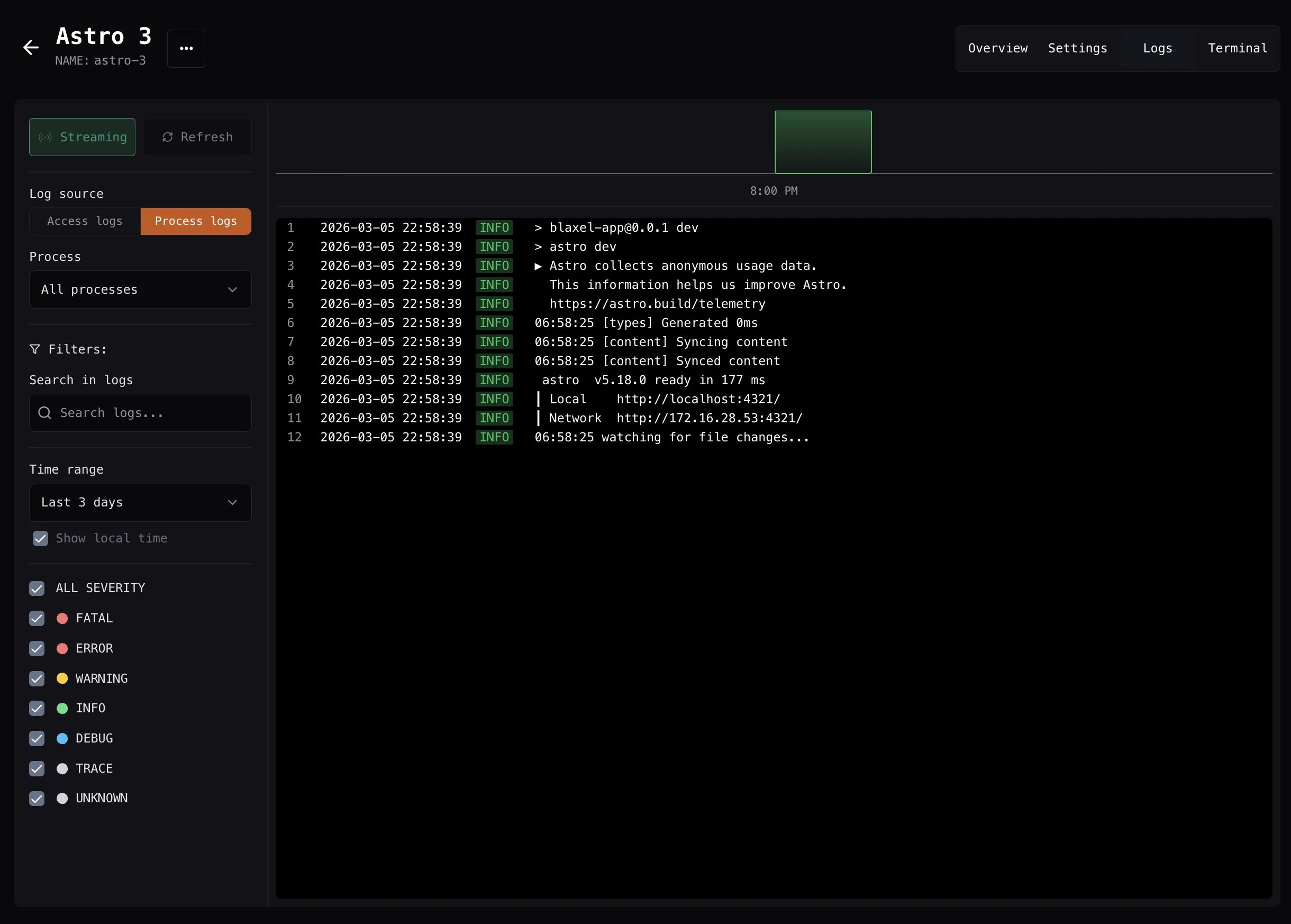
Process execution logs are also visible in the Blaxel Console. Refer to the Logs section of the sandbox detail page, as shown below:
Set the working directory
Set the working directory for subsequent commands:Use process names
When starting a process (running a command), you can specify a process name. This lets you interact with the process—such as retrieving logs or process information—without needing to store the process ID on your end.exitCode parameter of the process execution object returned by the process.exec and process.get methods.
You can also use the process ID or name to retrieve logs of your processes.
Kill process
Kill a process immediately by running:Long-running processes
Blaxel Sandboxes are great for long-running processes. Processes you launch detach by design: theirstdout and stderr are redirected to files and the process is monitored by background workers in the sandbox, so it survives independently of your client connection.
By default, the general sandbox lifecycle rules still apply: the sandbox only stays awake while a connection is maintained and will suspend after a few seconds of inactivity. Use keepAlive to override this for the duration of a process.
Two independent flags let you tune how the behavior works.
waitForCompletion(default:false) controls only whether the SDK call blocks until the process exits and returns its output. It has no effect on the process or sandbox lifetime.keepAlive(default: none) controls only whether the sandbox stays awake (auto-standby/scale-to-zero disabled) while the process runs, even with no active client connection. A counter tracks runningkeepAliveprocesses and is decremented automatically when each one completes, letting the sandbox return to standby on its own. See Sandbox keep-alive for details.
Wait for process completion
You can wait for process completion when executing it:.logs field with the combined stdout and stderr output as a string. Also, notice the timeout parameter which allows you to set the process timeout duration in seconds.
For processes without
keepAlive: true, the timeout parameter does not kill the process. It only bounds how long the API call waits when using waitForCompletion (or waitForPorts); once the timeout elapses, an error is returned but the process keeps running in the background. Non-keepAlive processes have no auto-kill timeout and run until they complete on their own. To auto-kill a process after a duration, use keepAlive: true together with a timeout (see Sandbox keep-alive).Wait for ports
In some cases, you may want to wait for a port to be opened while running — for example if you are runningnpm run dev and want to wait for port 3000 to be open.
Auto-restart
Restart process on failure
You can restart a process if it fails, up to a maximum number of restart attempts:Sandbox keep-alive
By default, sandboxes automatically switch to standby when there is no active connection to save resources. However, it is possible to adjust this behavior and keep the sandbox running when you launch a process, even if there isn’t an active connection to it. This is typically used to keep a long-running task actively run within the sandbox environment even when it is not serving requests. You can include additional keep-alive metadata when launching a new process:keepAlive: true. If a keepAlive process is started without a timeout, it defaults to 600 seconds (10 minutes) and is automatically terminated when the timeout elapses. To run a keepAlive process indefinitely with no auto-kill, set timeout: 0.
The table below summarizes how keepAlive and timeout interact:
| Configuration | Process auto-kill behavior | timeout parameter effect |
|---|---|---|
keepAlive not set (default) | Never auto-killed. Runs until it completes on its own. | Only bounds how long the API waits when using waitForCompletion or waitForPorts. Does not terminate the process. |
keepAlive: true, no timeout | Auto-killed after 600 seconds (10 minutes). | — |
keepAlive: true, timeout: 0 | Never auto-killed. Runs until it completes on its own. | — |
keepAlive: true, timeout: N | Auto-killed after N seconds. | — |
Disable process telemetry logging
By default, process stdout and stderr are exported as structured telemetry logs (visible in external observability systems). You can disable this telemetry export by setting theSANDBOX_DISABLE_PROCESS_LOGGING environment variable inside the sandbox.
When set to true or 1, structured telemetry output is suppressed for all processes. File-based logging and real-time log streaming via the SDK remain fully functional and are not affected.
Set this variable in your Dockerfile or at sandbox creation time:
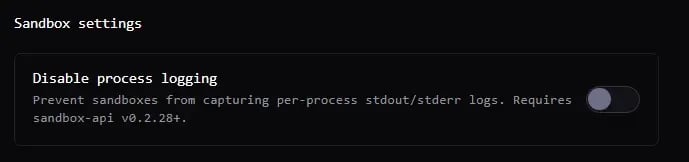
This only suppresses the structured telemetry export. You can still retrieve process logs via the SDK’s
process.logs() method and stream them in real-time.Process statuses
A process can have either of the following status:runningcompletedfailedkilledstopped